
ATG Search - how to define the search configuration rules

ATG Search configuration rules are specified through the ATG BCC Merchandising UI. Over here you could specify the below set of rules
  1. Redirection rules --> If you want to redirect to another page other than the search result page for a search keyword
  2. Property Prioritization rules  --> Prioritize certain set of properties and give weightage
  3. Result exclusion rules  --> Exclude certain search results
  4. Result positioning rules  --> Position / Sort the search result data


1.  To create the search configuration tree, you need to log-in to the ATG BCC Merchandising UI and select the Search Configuration Tree in the Browse tab drop down. Now need to click the Create button and first you need to create the Search Configuration Folder.


2.  When you create the folder, give the name of the folder and select whether the contents vary by Language or Segment. If your ecommerce site need to support more than one language and you need to configure different locale specific rules, please select the contents vary by Language option.


3.  After you create the folder, you could click the create the Search Configuration button and specify the Name and the Locale. These locale values are populated in the drop down from the component /atg/search/config/LanguageDimensionService


4. Once you create the Search Configuration,  you can add different rules like Redirection, Result Exclusion,...


Below you could find the screen shot of a sample Result Exclusion rule for the searches with search keyword contains all of the words baby.
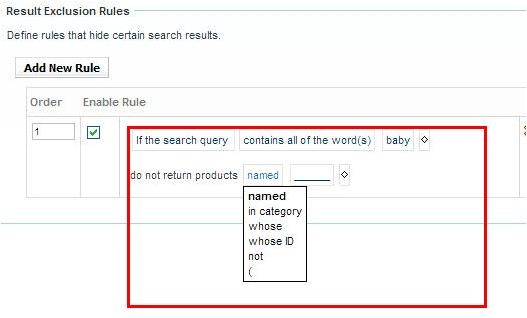

Below you could find the screen shot of a sample Result Positioning rule for the searches with search keyword contains all of the words tv.


Comments

  1. Sony kindly post some more example on Result Positioning rule to understand How it works.

    ReplyDelete
  2. Sorry, I don't have the Search set up now. The result positioning is pretty straight forward and all the matching results will be positioned at the top. If you have any specific queries, please ask.

    ReplyDelete
  3. Hi Sony,

    Need some help. I have successfully configured search rules in /atg/bcc and deployed.
    But on commerce site if I search with that keyword it is not redirecting.
    Any specific reasons.
    Please refer this link to understand the problem better...
    https://kr.forums.oracle.com/forums/thread.jspa?threadID=2423279


    Thanks in Advance.

    ReplyDelete
  4. ATG out of box SearchFormHandler and droplets have an autoRedirect property that specifies whether the form handler should check the search results for a redirect URL or not. Check this

    ReplyDelete
  5. How do I add another keyword that associates with the same one for example "Sharkbite" pull up search results but when entered in "shark bite" separately no results found. I would like to know how to add a word differentiation and make it live.

    ReplyDelete
  6. If you want to get the results of some other word, you can use the dictionary and give some synonyms. Also give "mode=AND" in the request attributes.

    ReplyDelete

Post a Comment

Popular posts from this blog

Google Chrome shortcut keys

If you are a Google Chromey guy, please find below the list of shortcut keys for some of the most used features  :-) Find more shortcut keys @  http://www.google.com/support/chrome/bin/static.py?page=guide.cs&guide=25799&topic=28650

Apache Lucene quick links

Lucene home page –> http://lucene.apache.org/ Download Lucene from –> http://www.apache.org/dyn/closer.cgi/lucene/java/ Lucene API Doc –> http://lucene.apache.org/java/docs/api/index.html Lucene docs for each release –> http://lucene.apache.org/java/docs/ Where can I get help from –> java-user@lucene.apache.org Lucene wiki  –> http://wiki.apache.org/lucene-java/FrontPage Lucene , how to improve search speed –> http://wiki.apache.org/lucene-java/ImproveSearchingSpeed Lucene , how to improve index speed  –>   http://wiki.apache.org/lucene-java/ImproveIndexingSpeed Lucene FAQ –> http://wiki.apache.org/lucene-java/LuceneFAQ

How to convert your Blogger Blog to PDF ?

You can use a website called "blogbooker" @  http://www.blogbooker.com/blogger.php   to convert your Blogger Blog to a PDF . Please find the steps below : 1. Save your blog as an xml using Blogger Settings - Other - Export Blog option 2. Go to the website " http://www.blogbooker.com/blogger.php " and select this XML , give your blog address and select the options like date range, page size, font, ... 3. Click the  "Create Your BlogBook" button to view and save your blog as PDF

SOAP UI faster start up

If you feel like your SOAP UI is starting up very slowly, check whether this is due to any start up web page call. You can check this @ Preferences - UI Settings - Show Startup Page ==> Here you can deselect this option to improve the start-up time.

Good features of Eclipse3.5 (Eclipse Galileo) JDT

This blog will list down the new features of Eclipse Galileo JDT. I will write another blog regarding the features of Eclipse Helios and Eclipse Indigo. Read about Eclipse Helios features @  http://tips4ufromsony.blogspot.com/2011/11/good-features-of-eclipse-36-eclipse.html ========================================================== 1. Toggle Breadcrumb —> Will list the name of the file and the method name with respect to your cursor position , on the top of the Eclipse IDE. From here you can go to other methods, other classes in same package , …. Screen shot of Toggle Breadcrumb: ========================================================== 2. From the method call , you can either go to declaration or to implementation Screen shot of implementation call: ========================================================== 3. Advanced Open Type –> You can restrict the open type to a selected Working set only. Screen shot of Advanced Open Type: ==========...